X (Twitter) Bookmark Manager

Never Lose a Saved Tweet Again

  • Nested folders up to 3 levels deep
  • Smart folders that auto-sort bookmarks
  • Instant full-text search across all bookmarks
  • Archive & tag system

Install Browser Extension

TweetStorm bookmark manager showing organised folders, tags and smart filters for Twitter/X bookmarks

Introduction

X gives you a single bookmark list with only basic keyword search — no filters by author, date, tweet type or any other criteria. The only organisation it offers (and only for premium users) is simple flat folders. You have to scroll and scroll to find the tweet you saved weeks ago. It is a nightmare for power users who save hundreds or thousands of tweets. TweetStorm's Bookmark Manager fixes that. Import your entire X bookmark library, organise it into nested folders, label tweets with tags, and surface anything instantly with full-text search and advanced filters.

Whether you're a researcher building a reference library, a marketer archiving competitor content or a founder collecting startup wisdom — TweetStorm keeps every saved tweet exactly where you need it.

Get Started now

Features

Discover the tools that turn a bookmark list with no advanced search or filters into a structured, fully searchable knowledge base.

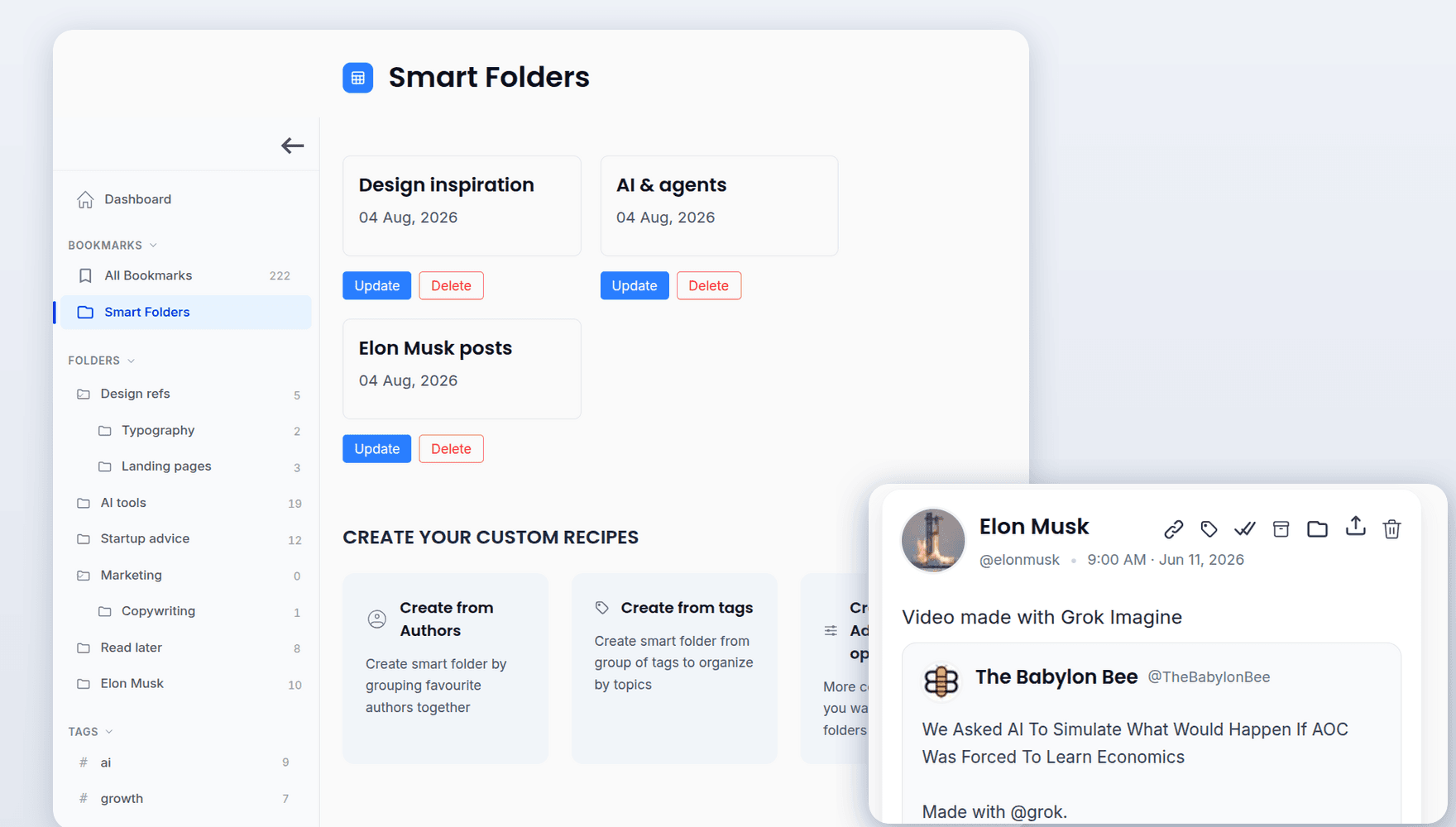
Smart Folders

Create dynamic folders that auto-fill based on tags, authors or keywords. Set your rules once — your bookmarks sort themselves on every sync.

Nested Folder System

Organise bookmarks into folders up to 3 levels deep. Build a structure that mirrors how you actually think and research.

Tag-Based Labels

Apply multiple tags across different folders. One bookmark can belong to many categories simultaneously — without duplication.

Instant Full-Text Search

Search every saved tweet by keyword, author or tag in milliseconds. Find the thread you saved six months ago — instantly.

Benefits

Stop losing valuable content. TweetStorm keeps every saved tweet organised, searchable and always within reach.

Never Lose a Saved Tweet

X's native bookmarks have no advanced filters, no tags, and no way to search within a folder. TweetStorm stores and indexes everything so you always find what you saved.

Save Hours of Manual Sorting

Smart folders auto-sort incoming bookmarks the moment they sync. You build the rules once — the tool does the sorting forever.

Build a Personal Knowledge Base

Turn scattered saved tweets into a structured knowledge base — for research, writing, competitive analysis, or anything you care about.

Archive Without Losing

Move old bookmarks to archive to keep your main view clean, without permanently deleting content you might need later.

Independent of X

Your bookmarks live in TweetStorm, not just on X. Even if a tweet gets deleted, your saved copy remains fully accessible.

A Three-Layer Organisation System

Unlike X's basic flat folders, TweetStorm gives you three complementary organisation tools — so every saved tweet has exactly the right place, and you always find it fast.

Smart Folders

Dynamic folders that auto-fill based on your filter rules. Set them once — they update themselves on every sync.

AI & Machine Learning
Startup Advice
Marketing Threads
Product Design

Nested Folders

Manually build a folder hierarchy up to 3 levels deep. Full control over your own organisation structure.

Work Resources
Competitor Research
Campaign Ideas
Growth Strategies

Tags

Cross-folder labels that let one bookmark live in many categories simultaneously — without any duplication.

#startup#growth#design#ai#marketing#threads#advice#tools

Use all three layers together for a complete personal knowledge base — or keep it simple and start with just folders.

How to Guide

STEP 1

Create Your Account

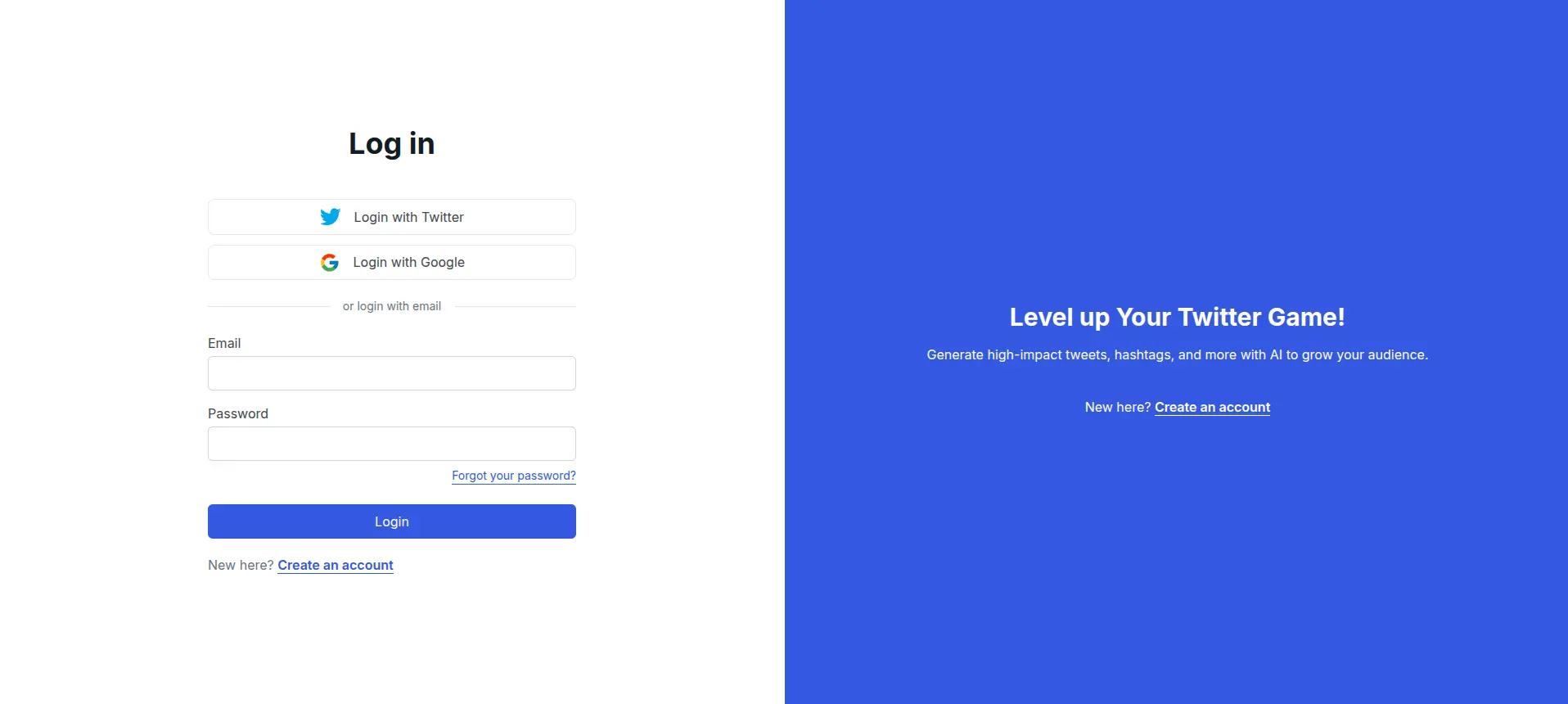
Visit Tweetstorm.ai and create a free account or log in. It takes under a minute to get started.

TweetStorm.ai login screen with options to sign in via Twitter, Google or email and password.
STEP 2

Install the Browser Extension

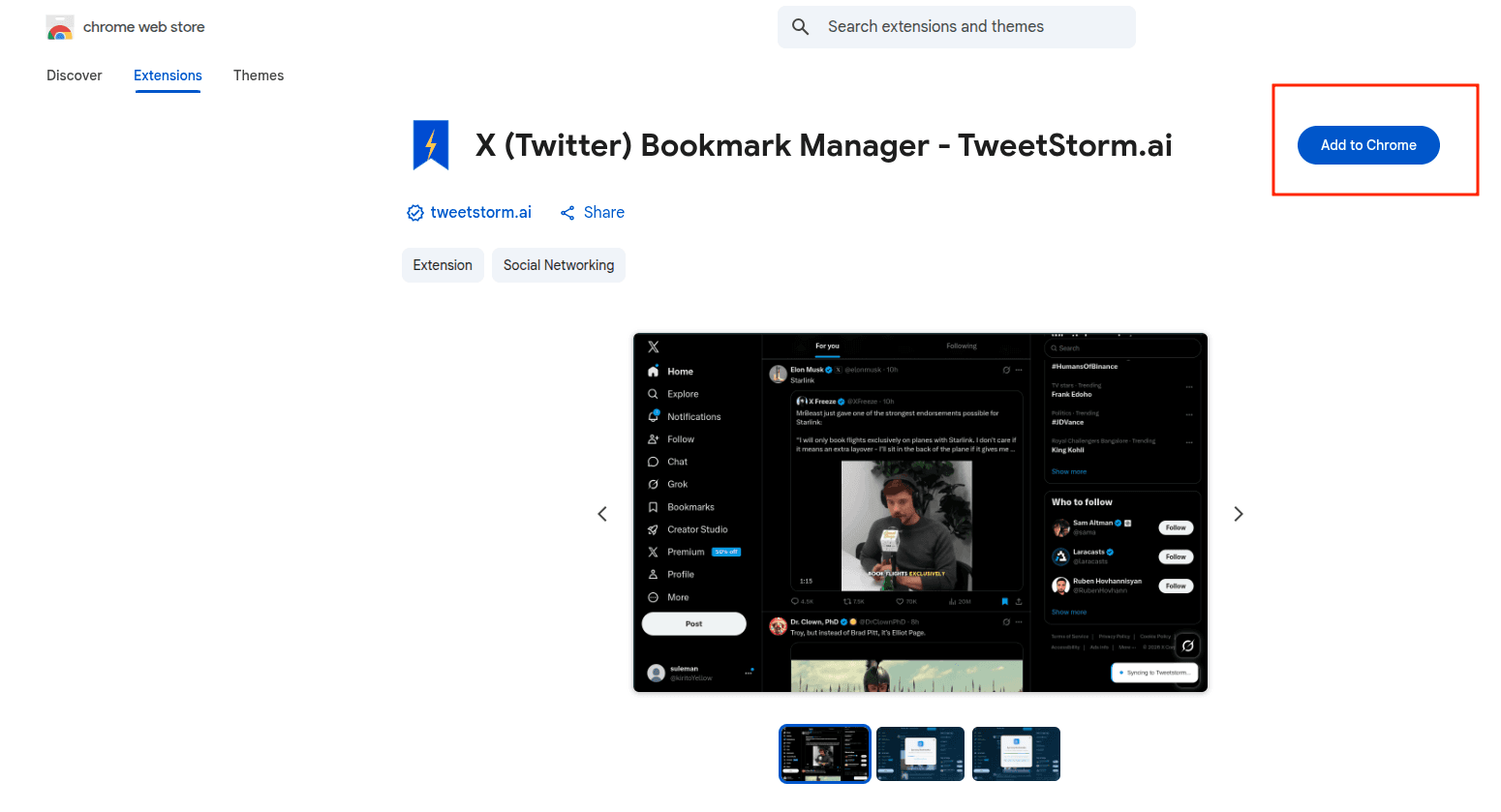
Install the TweetStorm extension for Chrome or Firefox. That's all the setup required — no API keys, no manual configuration.

As soon as the extension is installed it visits your X bookmarks page and fetches your entire bookmark library automatically. All your saved tweets will appear in your TweetStorm dashboard within moments.

TweetStorm Chrome extension page showing the "Add to Chrome" button to begin installation.
STEP 3

Create Folders & Add Tags

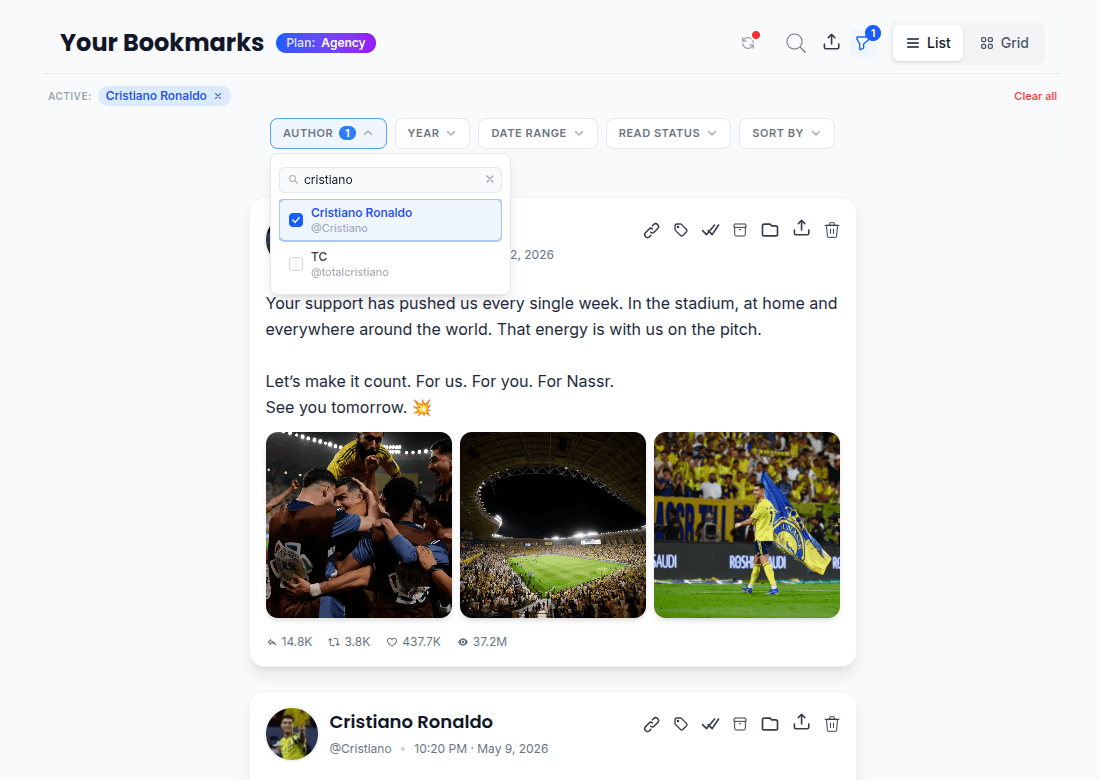
Inside your Bookmarks dashboard, create folders and tags. Assign bookmarks to folders or tag them from the individual tweet card action menu.

TweetStorm bookmark manager showing the folder tree and tag assignment interface.
STEP 4

Set Up Smart Folders

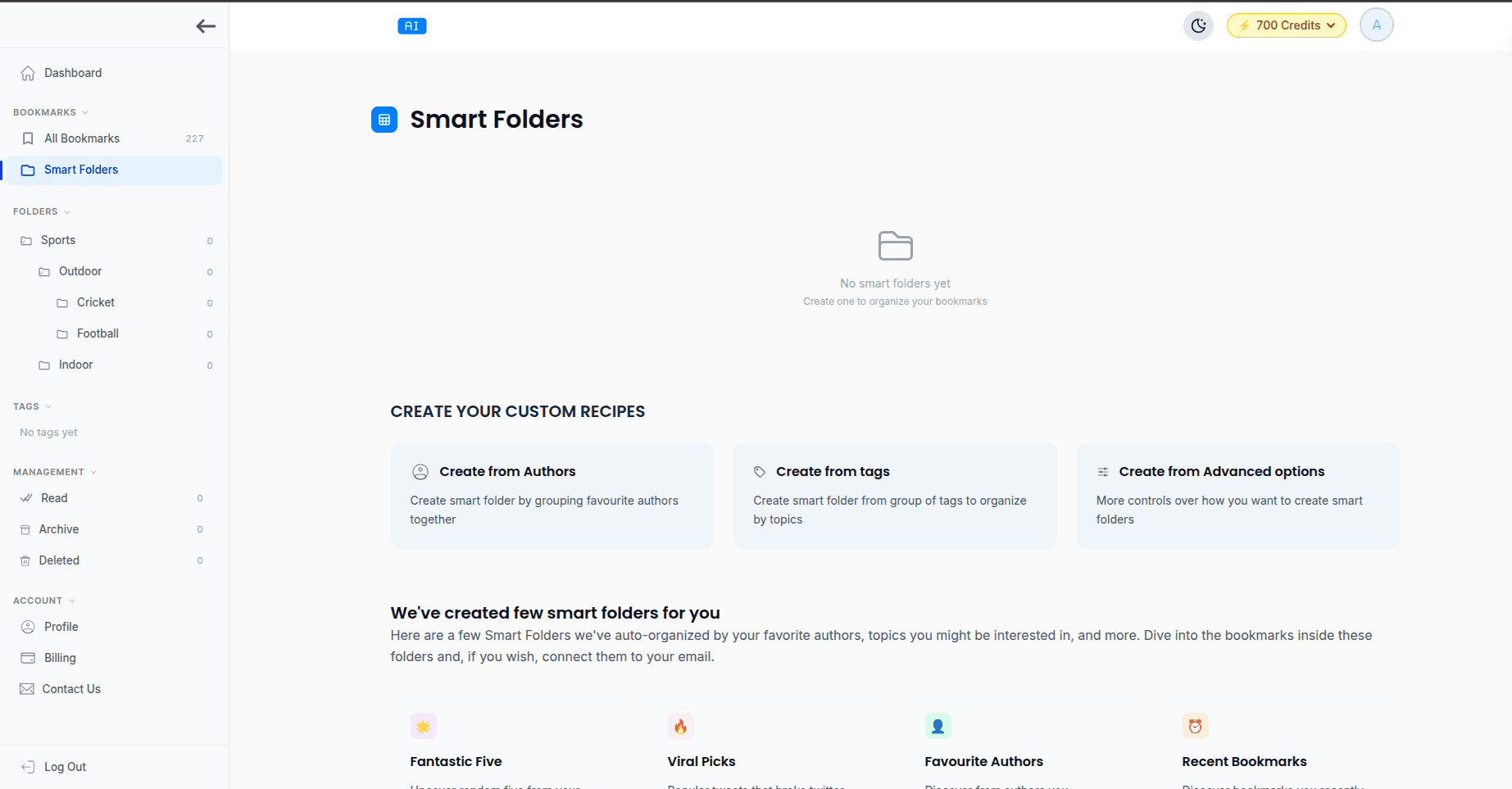
Navigate to Smart Folders, select your preference by which your smart folder should show the bookmarks. Your preferences can be based on authors, tags, keywords or advanced options that lets you use all three options. Once you set up your smart folder, it will automatically populate with any bookmarks that match the criteria — and keep itself updated on every sync.

TweetStorm smart folder creation screen showing filter options for authors, tags and keywords.

Four Ways Your Bookmarks Stay in Sync

TweetStorm keeps your library up to date automatically — you never have to think about it.

  • On install — the extension fetches your entire bookmark history the moment it is added to your browser.
  • Manual sync on X — a sync button is injected directly into X's bookmarks page so you can trigger a refresh without leaving the site.
  • Real-time on bookmark — whenever you bookmark a tweet in your browser the extension captures it instantly, no sync needed.
  • Manual sync on TweetStorm — trigger a full sync any time from your TweetStorm dashboard without opening X at all.

Use Cases

Who Uses the Bookmark Manager

Researchers & Writers

Save threads, studies and insights from X. Use nested folders to separate topics and search instantly when it's time to write — no scrolling through hundreds of unorganised saves.

Social Media Managers

Archive competitor campaigns, trending formats and content inspiration in organised client folders. Smart folders keep those collections updated automatically so you never miss a relevant post.

Founders & Investors

Build a private knowledge base from startup advice, market signals and founder wisdom. Tags let you cross-reference ideas across topics — turning X into a structured research database.

Sports Fans

Follow your favourite teams and players by collecting tweets from specific authors or hashtags like #football, #NBA or #soccer into dedicated folders — so match updates, transfer news and post-game takes are always in one place.

Tech & AI Enthusiasts

Auto-gather bookmarks tagged AI, GPT, LLM or Midjourney into a single smart folder. Stay on top of every new development in AI and machine learning without manually sorting anything.

Best Practices

A few simple habits turn TweetStorm into a powerful, long-term knowledge system.

Create Folders Before You Sync

Set up your folder structure first, then trigger the sync. Assigning bookmarks to existing folders as they arrive is far faster than sorting a large backlog after the fact.

Use Smart Folders for Recurring Topics

If you regularly save tweets about the same subject, create a smart folder for it. It will collect new bookmarks automatically so you never sort that category manually again.

Tag First, Folder Second

Apply tags liberally for cross-topic bookmarks, then place them in a primary folder. Tags let you find the same tweet through multiple search paths, making your library far more navigable over time.

Explore more Twitter tools

Try powerful Twitter/X tools to automate, clean up and optimize your account.