Direct message on X/Twitter in 2026: A guide
Ejaz Ahmed
27 Nov 2025 | 6 min read
This guide covers sending private messages, managing settings and creating group chats on X/Twitter via web and mobile. Start connecting professionally and personally today.
X/Twitter direct messages (DM) explained
X/Twitter DMs are private messages between users or groups, unlike public tweets. They can contain various media and, depending on settings, can be received from followers or anyone.
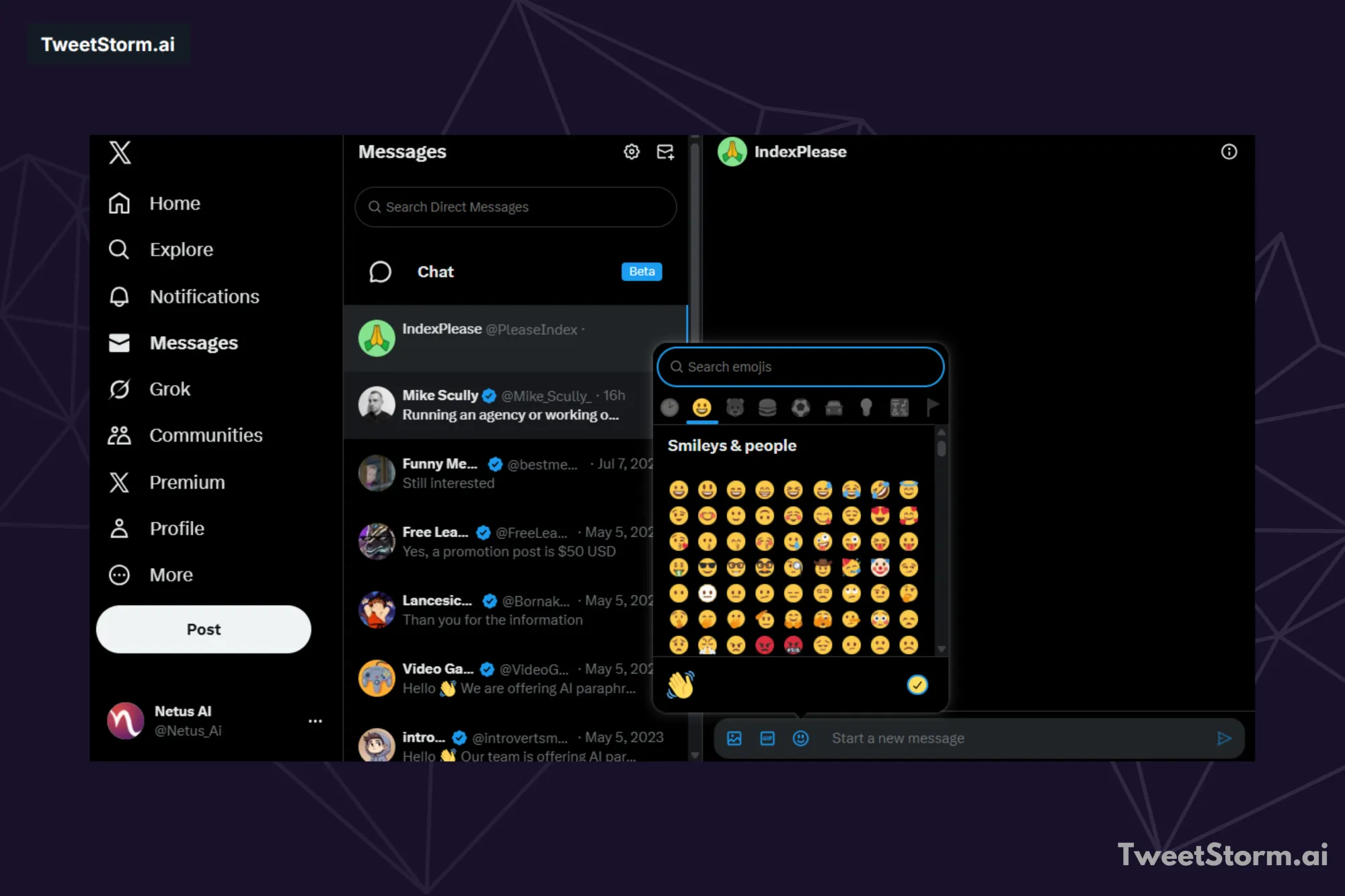
How to send a X/Twitter DM from the web?
To send a direct message (DM) on X/Twitter via the web, follow these steps:
- From the left-hand menu, select the Messages icon (envelope).
- On the Messages page, click the "New message" button (top right, speech bubble with a plus sign icon).
- In the pop-up, type the @username of the person you want to message or select them from your follower list.
- After selecting a recipient, type your message in the text box at the bottom of the pop-up.
- Click "Send" after composing your message.
Sending X/Twitter DMs on iOS and Android
Sending a X/Twitter DM is almost identical on iOS and Android, with minor app design and button placement differences.
To send a X/Twitter DM on iPhone (iOS):
- Open the X/Twitter app, then tap the Messages tab (envelope icon).
- Tap the new message icon (pencil inside a square) in the top right.
- Search for the recipient by username or select from the suggested list.
- Tap "Next," type and send.
To send a X/Twitter DM on Android:
- Open Twitter, then tap the Messages tab (envelope icon).
- Tap the new message icon (a “+” in a speech bubble) in the bottom right.
- Search for the recipient by username or select from the suggested list.
- Type and send your message.
Initiating a group conversation on X/Twitter
To start a group conversation on X (Twitter):
- Tap the envelope icon to open Messages.
- Click the new message icon (speech bubble with a plus sign) to start a private message.
- In the "To" field, type the usernames of the X/Twitter users you want to include in the group conversation. You can select multiple people.
- Type your message in the text box. To share a photo, click the photo icon.
- Click the send icon to deliver the message.
Group recipients can now receive direct messages.
Sending a post through direct message
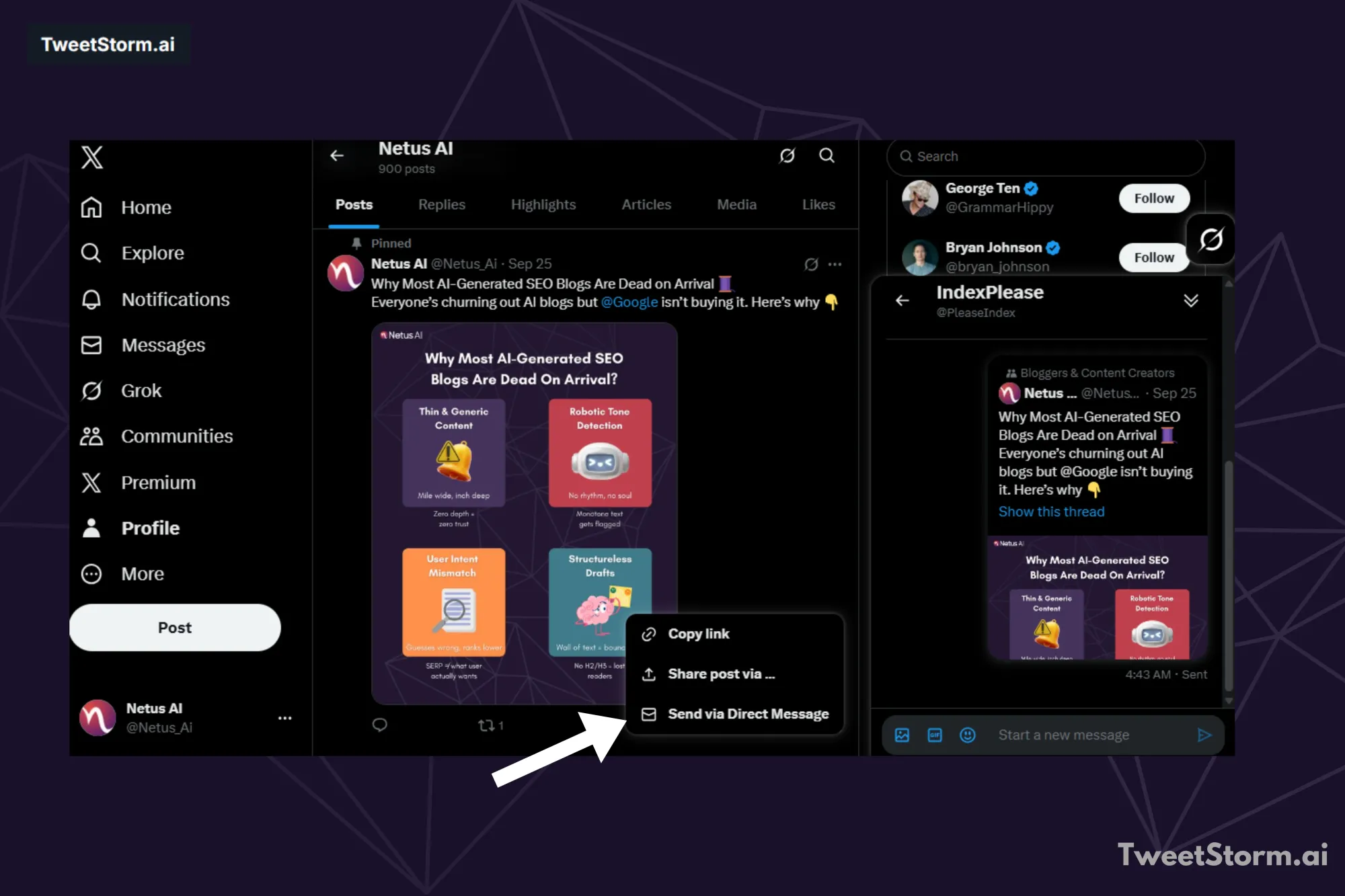
To share an X/Twitter post via Direct Message (DM) on the web, follow these steps:
- Find the tweet to share by scrolling or searching.
- Click the Share icon (upward arrow from a box) below the tweet.
- Click "Send via Direct Message" in the share options.
- A window will pop up where you can type the @username of the person you want to send the post to. You can search or choose from your followers list.
- Next, click "Send" to share the post via DM.
Sending direct messages on X/Twitter in 2026: Eligibility
X/Twitter previously allowed DMs to anyone with open DMs. Now, you can only message those who follow you, unless you have X Pro. This makes it harder to contact non-followers without a premium subscription.
X/Twitter DM settings
1. Select message request senders
You receive X/Twitter Direct Messages (DMs) from people you follow. To receive DM requests from others, log in and enable "Receive messages from anyone" under: profile icon > Settings and privacy > Privacy and safety. Access DMs via the Messages (envelope) icon.
2. Edit DM
To edit a message, open the chat, find the message, long-press it, select "Edit message," modify it and tap "Send."
Messages can be edited up to five times; an “Edited” label will appear.
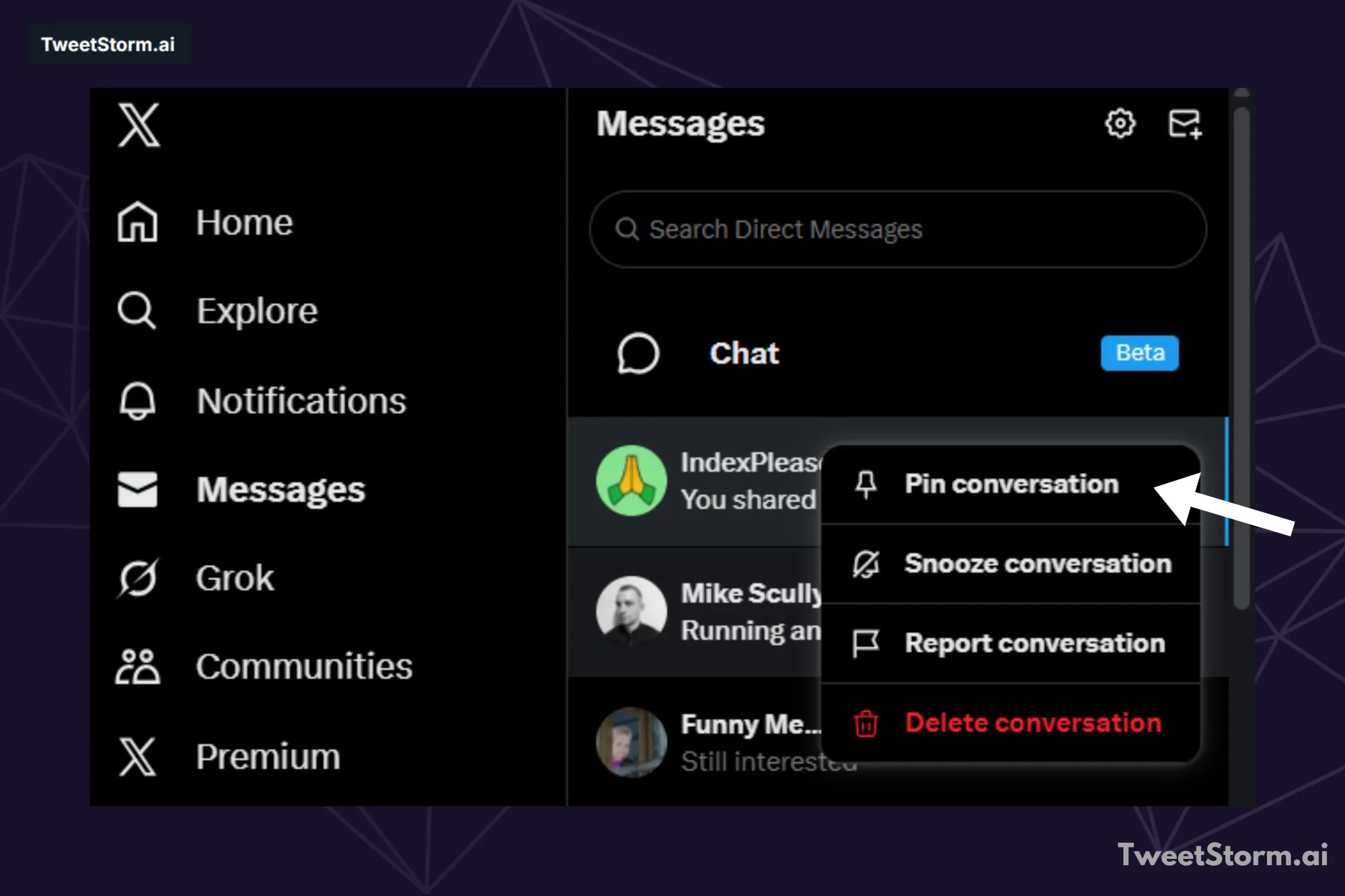
3. Pin a DM
To pin an X/Twitter DM: Open inbox, select conversation, tap more icon, choose "Pin Conversation." Pinned conversations appear in pinning order. To unpin, tap the more icon and select "Unpin Conversation."
4. Snooze DM alerts
To snooze X/Twitter DM notifications:
- Tap the envelope icon to open Messages.
- Select the desired conversation.
- Tap the information icon, then "Snooze notifications," and choose a duration.
This temporarily mutes a conversation without leaving it.
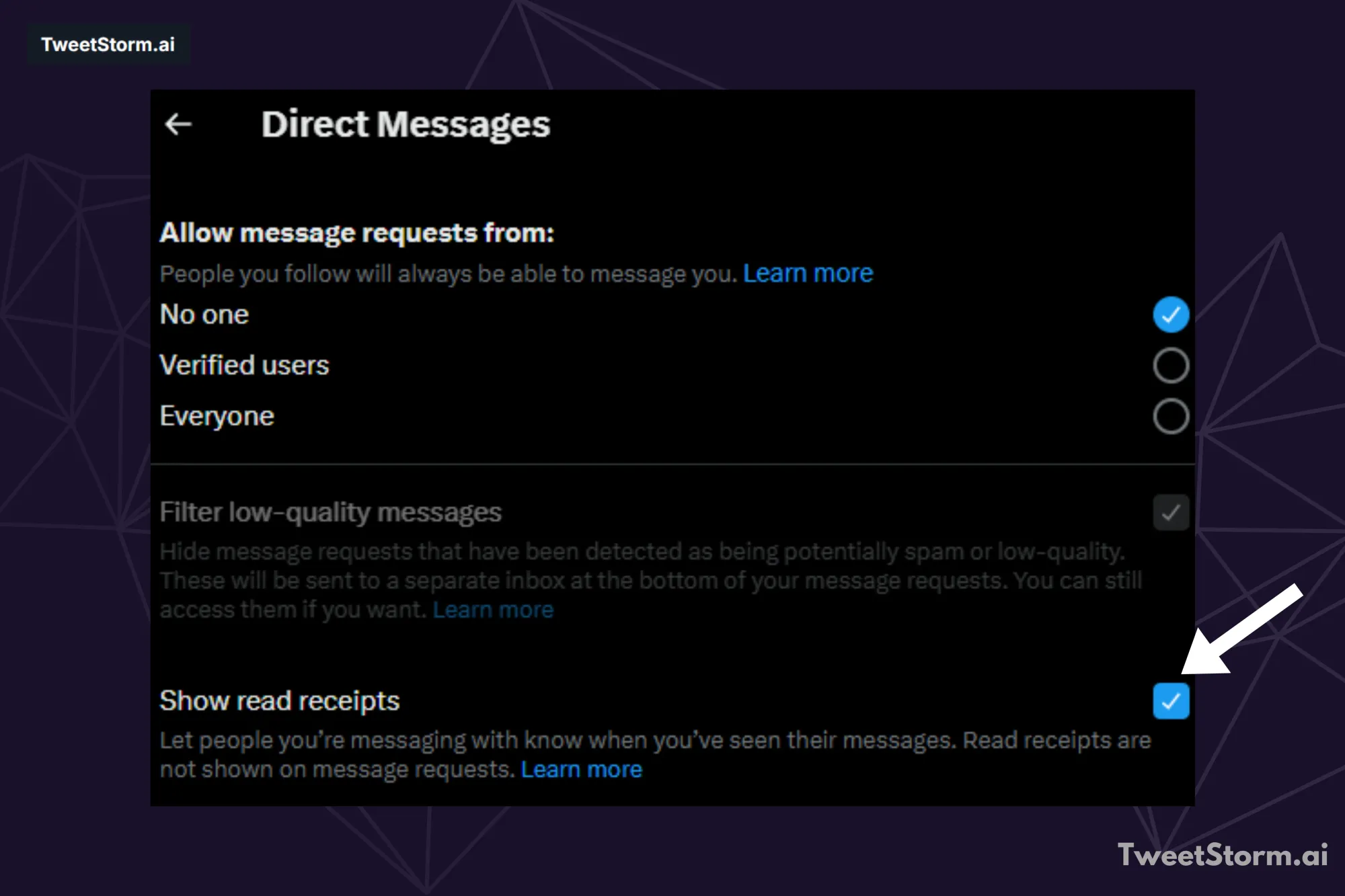
5. Disable read receipts
To disable X/Twitter Direct Message read receipts: Go to Messages, tap your profile picture, then Settings and privacy > Privacy and safety > Direct Messages and toggle off Read receipts. This hides your "seen" receipts.
6. Send & receive DMs via SMS on your phone
To DM via SMS on X, connect your phone. Keep messages under 160 characters (including command/username) to prevent public posts.
7. Filter low-quality messages
To filter low-quality messages on X (Twitter): 1. Tap Messages. 2. Tap your profile icon, then Settings and privacy. 3. Go to Privacy and safety > Direct Messages. 4. Toggle on "filter low-quality messages" to block spam/harmful content. Filtered messages are moved to a separate folder for review, where you can delete or block senders.
How can TweetStormAI help?
TweetStormAI is designed to enhance your X/Twitter experience, particularly around professional networking and content management.
While this guide focuses on the mechanics of Direct Messages, TweetStormAI helps you maximize the value of those connections and conversations:
The content you post publicly often drives people to DM you. TweetStormAI helps you generate high-quality, hype-free content that naturally encourages meaningful DMs from your desired audience.

Use TweetStormAI, a powerful X/Twitter management tool, to ensure every interaction feels intentional.
1. AI tweet generator for fresh posts & quote tweets
Whether you’re crafting a morning thought-leader riff or quoting someone’s viral thread, the core generator:
- Accepts a short prompt.
- Lets you pick tone, emoji + hashtag toggles.
- Produces a ready-to-publish tweet, linked media or not.
- The keyword option is there to help you write tweets according to your niche.
Because it sits next to the reply tool, you can move from audience feedback to new content in seconds.
- Hashtag & bio quick-hitters
- Hashtag generator: Paste a topic, get ten niche-relevant tags. Great when you’re out of ideas or need to localize a campaign.
- Bio creator: Two lines, countless combos. Rotate tones or inject new keywords when your positioning shifts.
Final thoughts
By 2026, direct messages on X, which used to be Twitter, serve as a key strategic channel for communication.
The platform keeps evolving. It adds things like editing messages, pinning them and better privacy options. You can disable read receipts now. Message filtering helps too. All this leads to a more advanced setup for professional messaging.
In the end, doing well on X or Twitter comes down to blending public exposure with those deeper private connections. Tools such as TweetStormAI fit right in here.
They make sure your public posts, the real driver that pulls folks into your DMs, stay top-notch and on point every time. That turns each private chat into a solid step forward for growing work relationships. Get a handle on your DMs. You basically unlock an essential part of your overall strategy on X or Twitter.
FAQs
What are X/Twitter Direct Messages (DMs)?
X/Twitter DMs are private messages sent between individual users or groups, allowing for private communication, unlike public tweets. They can include various types of media.
How has the eligibility for sending DMs changed in 2026?
X/Twitter now generally only allows you to message users who follow you. To message non-followers, users may need to have an X Pro premium subscription or the recipient must have their "Receive messages from anyone" setting enabled.
How do I start a group conversation on X (Twitter)?
Head over to the Messages area first. You will see the envelope icon there. Click on the new message icon after that. Then in the To field, type out the usernames for everyone you want to add to the group conversation.
Can I edit a Direct Message after sending it on X?
Sure, you can hold down on the message until the menu pops up. Then choose the "Edit message" option from there. Go ahead and tweak whatever needs changing. Finally, just tap "Send" to save it. You have up to five edits allowed on each one. An "Edited" label shows up right after to let people know.
How do I pin a conversation in my X/Twitter DMs?
Open up your inbox first. Then pick out the conversation you want to work with. Tap the more icon there or the information icon if that is what shows up. Select Pin Conversation from the options. Conversations that get pinned this way always stay at the top of your inbox.
Newsletter
Never miss a post
One email a week with everything new on the TweetStorm blog.